The Computational toolbox suitable for Spectroscopic simulations and Analysis
This toolbox sets out general techniques for performing spectroscopic simulations. As with any toolbox, you have to select which tools you will use. The tools themselves include those appropriate for the problems above, and includes those that you might also find useful for research projects later in the course. You have to develop the skills to recognise the appropriate tools to use. Because a tool exists does NOT mean you are obliged to use it. Think of it as the shelves in an experimental laboratory full of glassware; you check out that which you think will be appropriate for the experiment you are doing.
Predicting the 1H and 13C NMR Spectrum of a compound
The 13C (also 15N,1NF, 31P) spin-spin decoupled spectrum of a molecule can be predicted from first principles using the so-called GIAO approach using quantum mechanical density functional theory. The background to this, and a famous recent example can be found in the article by Rychnovsky[1] on a revision of the structure of Hexacyclinol. He reports that the mean error for the 23 carbon shifts in the predicted structure was around ± 1.8 ppm, with a maximum error of around 5.8 ppm. An improved procedure which reduces the mean and maximum errors by one half will be used here[2], although a number of caveats for successful prediction should be noted. The most serious is that the method is highly sensitive to the conformation of the molecule. If various different conformations are possible (and for some molecules, 100s of reasonable conformations can sometimes be imagined), they should all be scanned by this method. Since this is clearly not feasible in a reasonable time, you should not choose a problem that has conformational ambiguity.
Procedure
Creating a Molecule input file
You have (at least) four options for creating a molecule file containing (approximate) 3D coordinates
You will need to sketch your epoxide in Avogadro/ChemBio3D and perform an initial refinement of its 3D geometry using MMFF94s (as per the standard exercise). At this stage, whilst the calculations still take only a few seconds, you might wish to investigate several conformational possibilities to see which might be the lowest (but don't try more than say 5). Some conformations can be preset (a worthwhile one is to always try to get 6-membered rings into a chair.
You can search for your system in Pubchem (best/fastest for complex systems with unique names).
Once a hit is identified, select its 3D Conformer and click on the Window. 3D coordinates are then generated (taking about 10 seconds).
Save these in the SDF format (this is actually identical with the MOL file format used elsewhere in these notes).
Open this file in Gaussview and check that the 3D coordinate generation (done using rules rather than by a force field) is sensible.
Open this file in Gaussview and check that the 3D coordinate generation (done using rules rather than by a force field) is sensible.
Perform a search for the molecule in the CCDC database using Conquest, and save the coordinates using Mercury in .mol2 format. These are in fact the only real coordinates, having been determined experimentally, and hence the most trustworthy.
This initial geometry will then have to be refined/optimized using the following method.
In Avogadro, go to Extensions/Gaussian
Select Job Type/Minimise; Method DFT=B3LYP
A note on DFT methods:. A wide variety of DFT methods for NMR analysis have been proposed[3]. B3LYP has been extensively tested for the calculation of NMR properties and found to give reasonable results. Other functionals are listed here.
The Basis set to be used is 6-31G(d,p)
A note on basis sets: A wide variety of basis sets have been described (including a set optimized specifically for NMR shift calculations,[4], type pcS into the search box here) and often a decision on which basis set is most appropriate for which property being computed has to be made. In the case of NMR as a property, it is not necessarily true that the larger basis set is the better one!
Append a solvation keyword: scrf(cpcm,solvent=chloroform) A list of supported solvents is found on this page)
Append three keywords Freq(vcd), NMR and EmpiricalDispersion=GD3 to the keyword line.
Save the resulting file to your H: drive, making sure it is saved with the suffix .com.
Find the file in Windows Explorer, and with a right-mouse-click, open it with the NotePad++ program.
Delete all % lines at the top, leaving only the following line, which should show something like the following (for chloroform, substitute with the experimental solvent)
# b3lyp/6-31g(d,p) opt scrf(cpcm,solvent=chloroform) freq(vcd) NMR EmpiricalDispersion=GD3

Geometry optimization of 17 or 18 followed by NMR and IR calculation

 0 1
atom1-symbol 0 x-cooordinate of atom1 y-cooordinate of atom1 z-cooordinate of atom1
atom2-symbol 0 x-cooordinate of atom2 y-cooordinate of atom2 z-cooordinate of atom2
 ... ... ...
This shows the keyword line at the top, a blank line, a title card, another blank line, a charge/spin card (we will assume that your unknown is neutral, i.e. charge=0 and a singlet spin state, i.e. spin=1) and the first line of atom coordinates. If you need to calculate a charged species, change the 0 to e.g. -1 (for an anionic species). Whilst you are at it, check to see if your coordinates have any atom type designated Lp. If any such lines are present, delete the entire line. Lp is a Lone-pair, and is sometimes added by the Molecular Mechanics part of the program. However, if Gaussian sees it, it gets very confused, and will not run at all!.
Re-save this file, making sure you save it as TEXT and NOT RTF and that it retains the suffix .gjf.
If the system responds that the formatted checkpoint file does not exist it is quite probable that the calculation failed. Try instead to download the .logfile, which will have the error messages that help you diagnose what has gone wrong. Common reasons for the failure are
There was an error in the input .gjf file. A common error is the positioning or omission of blank lines. Check with the above to ensure they are correctly positioned. Another error is that the keywords are mis-typed. Gaussian will fail for either reason, but it should put out an error message in the log file.
If the initial geometry was a very bad approximation to the correct geometry, the calculation may meander, oscillate or simply go where it should not. It can spend a long time doing this. One way of limiting this behaviour is to replace the opt keyword with opt(maxcycles=25).
You can also inspect the progress of a geometry optimisation by downloading the .log file and in Gaussview, File/open and check the Read intermediate geometries box. That will show each step in the geometry optimisation, and quickly reveal faults.
The best way to eradicate syntax errors before submission to the HPC system is to run Gaussian on your laptop for a few seconds at least, this being better than waiting up to 24 hours to find that a trivial error stopped the calculation. You can run a Gaussian input in these ways;
Type G09W into the search box of the Windows start menu and run the program. Drop the Gaussian input file into the main Window, and if no errors result, selectProcess/Begin processing.
Type gview into the search box of the Windows start menu and run Gaussview. Open your input file using this program and launch G09W from Calculation/Calculation set up.
The calculation may have run for 48 hours and then run out of time. This means that the molecule may be rather large (> 30 non hydrogen atoms), or very conformationally mobile. You could try resubmitting with maxcycles set to something lower.
Analyzing the NMR Chemical Shift calculation[5],[6]
When the calculation has finished, download the checkpoint file
You may find it downloads as a .fchk.gz file and it may need decompressing by double clicking (this should invoke 7-Zip).
A further double click on the resulting .fchk file should open it in Gaussview and from that program, select Results/NMR (if the NMR keyword is greyed out, it means the calculations was not in fact successful).
From the Spectral display that appears, select the C nucleus, and the appropriate Reference Value in order to set the TMS reference correctly. If the method/solvent combination is not available from the pull-down menu, you will have to add it manually. Check with Laura Patel on how to do this. Now, click on any peak to find out what its chemical shift is, and compare with the spectrum reported in the literature.
You should note that carbons attached to "heavy" elements (particularly eg halogens or sulfur) have shifts which need correction for so-called Spin-orbit coupling errors. Typically, C-Cl needs correcting by -3 ppm, C-Br by -12 ppm, and C-I by about -28 ppm. First row transition metals are around -3ppm. Other elements to be determined!2. Another systematic error present is that the carbonyl of esters, amides etc tends to be out by about 5ppm. Use the following simple correction for such carbons only: δcorr = 0.96δcalc + 12.2.
You can probably use your calculation to actually assign the 13C shifts to the carbons of your molecule. If you spot one or more carbons out by more than 5ppm, its quite likely that you have the wrong conformation of your molecule in that region (i.e. the method can actually be used for conformational analysis), or of course that the original assigment in the literature is wrong. This actually happens quite often!
The method should work for other nuclei, including hydrogen.
Complete this section by returning to the SCAN portal and click on the publish link next to the job that carries the NMR prediction. This will deposit your calculation into a so-called Digital repository. Quote the entry in your Wiki pages as {{DOI|10042/12345}} where xyz is the entry generated by the previous operation.
↑A recent development is an enhanced technique for accurately computing 1H chemical shifts:R. Jain, T. Bally, P.R. Rablen,
J. Org. Chem., 2009, 74, 4017–4023 DOI:10.1021/jo900482q
Predicting the nJX-Y spin-couplings of your compound
You can calculate other NMR properties such as spin-spin couplings. Firstly, from the Gaussview display of the NMR shift spectrum, File/Save and save a new Gaussian input file. This differs from the original one in having a fully optimised molecular geometry rather than the molecular mechanics approximation. Load the resulting file intoNotepad++ and edit the keyword line so that it looks like:
This calculation can be very time consuming (~36 hours for 17 or 18) which is why it is not done by default (do not try it on anything with more than about 20 non-hydrogen atoms at this level). The advantage is that you get ALL the spin-spin couplings for ALL the nuclei. This procedure is probably accurate to about 2Hz or better.
Using the Predicted chemical shifts and coupling constants to simulate an observed spectrum
Obtaining chemical shifts and couplings is only half the story. To replicate an experimental spectrum, one has to combine these predicted values to simulate the actual spectrum. One program that allows you to do this is gNMR. This is available on all the Windows computers in the department.
References for Coupling constants
D. A. Evans, M. J. Bodkin, S. R. Baker, G. J. Sharman, J. Magn. Reson,, 2007. DOI:10.1002/mrc.2016
W. Deng, J. R. Cheeseman, and M. J. Frisch, “Calculation of Nuclear Spin-Spin Coupling Constants of Molecules with First and Second Row Atoms in Study of Basis Set Dependence,”J. Chem. Theory and Comput., 2, 2006, 1028-37. DOI:10.1021/ct600110u
Files for your Wiki write-up
Collect the following files for your Wiki writeup.
In addition to the other files as described above, you can export a spectrum as a .svg file. This is a scaleable version of the spectrum that can be included directly in the Wiki.
Predicting the Chiroptical properties of a compound
Measuring optical rotations is one of the oldest spectroscopic/chiroptical techniques, dating back well into the 19th century, and a mainstay of organic chemistry until IR/NMR etc came along mid 20th century. Although the theory of how molecules interact with polarized light has been known for a long time, it is only in the last 5 years or so that computers have become sufficiently fast to solve the problem to the required accuracy, which in fact comes in two parts. The simpler is to see if the absolute sign of the optical rotation predicted for a given absolute configuration of a molecule corresponds to that measured. Because the sign can easily change as a result of apparently minor changes to the structure of the molecule (or even in extreme cases, its conformation), there is little intuition that can be applied, or indeed simple rules. A full quantum mechanical calculation is pretty much the only reliable method for predicting the absolute sign of the OR. The second aspect is predicting the magnitude of the rotation. This again can vary from close to zero, to many thousands! It is generally accepted that only compounds with ORs of magnitude >|100| (or at a pinch >50) can be successfully used to predict absolute configurations with near total confidence. So you should only attempt to predict the OR of an asymmetric molecule if it fulfills these criteria. Another chiro-optical property is the CD spectrum. This is essentially the UV spectrum of the molecule, with the difference that it is recorded with chiral light. The two enantiomers of a disymmetric molecule interact differently with this light (think of it as opto-electronic diastereomers), and particularly the sign of the intensity of each electron transition can be either positive or negative. The resulting CD spectra are exact mirror images of each other for each enantiomer of the molecule, which means that distinguishing between them is trivial. The crucial difference between CD and OR is that the former is very much less sensitive to conformation, and hence the answer so much more definitive. There are other types of chiro-optical spectroscopies (Vibrational circular dichroism, Raman Optical Activity) which can be even more definitive, but these are still rarely used. Proceed as follows for the various techniques.
Procedure for Optical Rotation (OR)
Take the output of the previous frequency/NMR calculation (i.e. the QM-optimized geometry), and run a job of the following type:
# CAM-B3LYP/6-311++g(2df,p) polar(optrot) scrf(cpcm,solvent=chloroform) CPHF=RdFreq
This is a blank line; put no text in it
Title line, ie Optical rotation for literature compound
This is a blank line; put no text in it
0 1
firstatom-symbol 0 x-coordinate y-coordinate z-coordinate
...
lastatom-symbol  0 x-coordinate y-coordinate z-coordinate
This is a blank line; put no text in it
589nm 365nm
This is a blank line; put no text in it
Your input file should now look like this:
# CAM-B3LYP/6-311++g(2df,p) polar(optrot) scrf(cpcm,solvent=chloroform) CPHF=RdFreq

Optical Rotation for Benzene

0 1
 C                 -0.80486502   -1.19779785   -0.12009859
 C                 -0.90410564   -2.54234247    0.01744457
 C                  0.36935933   -3.40604162    0.07998066
 C                  1.58924913   -2.82155216   -0.00252982
 C                  1.70202257   -1.29366053   -0.15882856
 C                  0.58137338   -0.53360538   -0.21386133
 H                 -1.68967510   -0.59769527   -0.16354970
 H                 -1.86727129   -3.00382688    0.08259107
 H                  0.29100375   -4.46762871    0.18857735
 H                  2.47405922   -3.42165476    0.04092114
 H                  2.66518823   -0.83217606   -0.22397459
 H                  0.65972894    0.52798159   -0.32245929

589nm 365nm
The Cambridge variation on the B3LYP density functional method is used, which improves the prediction of chiro-optical properties compared to the normal B3LYP version. The keyword polar(optrot) calculates the [alpha]D optical rotation components of an asymmetric molecule. The wavelength of the incident light (589nm is the sodium D line) is read in using the keyword CPHF=RdFreq and the line is appended as 589nm after a blank line following the coordinates (you can specify more than one wavelength here if you wish). A final blank line follows the frequency line.
To find the computed value, you cannot use Avogadro or Gaussview, but you have to inspect the .log file instead, where it appears as e.g.[ALPHA] ( 5890.0 A) =-324.5 deg. This gives the estimated optical rotation for the exact enantiomer that you built (try submitting the other enantiomer and see if you get the opposite rotation). The method will reliably predict whether the optical rotation corresponds to the enantiomer you have built if [Alpha]D > 100°, but becomes increasingly unreliable for lower values. The OR is also highly sensitive to conformation; even a 60° rotation of a OH or Ph group can alter its value by a factor of two or more! Turned on its head, predicting OR could be regarded as a highly sensitive method for conformational analysis! You should be aware that this calculation an be quite time consuming, and molecules with > 30 non-hydrogen atoms should not be attempted.
Procedure for the ECD (Electronic Circular Dichroism) Spectrum
Use the following keywords, which invokes the so-called time-dependent DFT method, where the first 20 electronic singlet excitations are included (you can reduce this to a much smaller value, eg 3 or 5, or a much higher one if you want to simulate the high energy/UV region of the spectrum). Use the optimised geometry obtained from your first run of the molecule.
# CAM-B3LYP/6-311+G(d,p) td(NStates=20) scrf(cpcm,solvent=chloroform)

Electronic Circular dichroism calculation

 0 1
atom1-symbol 0 x-cooordinate of atom1 2-cooordinate of atom2 -cooordinate of atom3
atom2-symbol 0 x-cooordinate of atom1 2-cooordinate of atom2 -cooordinate of atom3
 ... ... ...
The spectrum can be viewed using the Results/UV-Vis option in Gaussview (use the .log file rather than the .fchk one). The regular UV spectrum is shown first, followed by the CD version.
Procedure for the VCD (Vibrational circular dichroism) spectrum.
This is actually the same as before, i.e. If you have this result already, there is no need to repeat it.
# B3LYP/6-31G(d,p) opt freq(vcd) scrf(cpcm,solvent=chloroform) EmpiricalDispersion=GD3 integral=grid=ultrafine

Electronic Circular dichroism calculation

 0 1
atom1-symbol 0 x-cooordinate of atom1 2-cooordinate of atom2 -cooordinate of atom3
atom2-symbol 0 x-cooordinate of atom1 2-cooordinate of atom2 -cooordinate of atom3
 ... ... ...
The spectrum (use the .log file rather than the .fchk one) can be viewed using the Results/Vibrations option in Gaussview, followed by Spectrum. The regular spectrum is shown first, followed by the VCD version.
References
An excellent comprehensive review of chiroptical methods, with lots of worked examples (and theory for those interested): J. Autschbach, Chirality, 2009, E116-152. DOI:10.1002/chir.20789
B. Mennucci, M. Claps, A. Evidente, and C. Rosini, J. Org. Chem.,2007, 72, 6680-6691. DOI:10.1021/jo070806i
For an example of a calculation, see that for pentahelicene ([alpha]D 2061°) DOI:10042/to-888 If you really want to entertain yourself, try something larger such as decahelicene!
For a recent application to another type of highly chiral molecule, see DOI:10.1021/ol901172g
Recently, it has been suggested (DOI:10.1021/ct300359s ) that the best basis set for use with optical rotations is something called aug-pcS-1, together with the CAM-B3LYP functional as noted above. If you want to try this basis (it is not built into Gaussian) you will have to specify the calculation as CAM-B3LYP/Gen and place the basis set for all the atoms of your molecule immediately following the line specifying the wavelength, ie 589nm. Get the basis here and in the basis search box, put aug-pcS-1, select all the atoms in your molecule from the periodic table, and format the output as Gaussian94. Copy the basis to the clipboard and using eg NotePad++ edit your Gaussian input (.gjf) file accordingly. You can inspect the input and output of a simple such calculation at DOI:10042/22282 .
Procedure for NCI (non-covalent-interaction) analysis
You will start by downloading the .fchk file from one of the transition state calculations tabled above, asbefore.
Double-click the .fchk file to load it into Gaussview (if it is not loaded automatically)
From the menu, invoke Results/Surfaces-Contours and select cube actions/new Cube.
Type = total density, Grid = Medium (or if you have time, fine). This may take about 5 minutes to compute.
When the cube shows as available, cube actions/save cube. Important: Ensure that you select drive C: on Windows and the directory temp to save the file. For reasons associated with Java applets, it must not reside on your network drive H:
Now go to this page to load the program that will convert the density cube to an NCI surface. It should take less an a minute to generate the surface. Save the two files generated (the .xyz and the .jvxl) and you can use these (if you wish) to create a rotatable NCI model in your Wiki report. If you do not wish to do that, then save a screen-shot of the NCI surfaces (having oriented the molecule to display the feature you wish to show).
References
A very recent article discussing the relative merits of the NCI and QTAIM methods for characterising weak interactions in molecules is well worth a read: DOI:10.1021/ct400420r
Procedure for Electronic topology (QTAIM)
This can be done using the Avogadro2 program. Download first a .wfn file from the digital repository entry in the tables above. This carries a sub-set of the information present in a .fchk file (needs unzipping) and defines the wavefunction for the molecule (in terms of the coefficients of the basis set orbitals used to compute the wavefunction). Invoke Extensions/QTAIM/Molecular graph and load the .wfn file. It may take 5 minutes to produce a result.
Immediately select the Display icon (a blue star) rather than the default Draw icon (Pencil).
Go immediately to Display settings
View the result with Ball&Stick OFF (which shows a wireframe diagram) in Display types.
View QTAIM on in Display types.
The bond topological critical points (BCPs) are shown as small yellow spheres located along a (normally straight) path connecting two nuclei. Program limitations currently mean that you cannot obtain the accurate coordinates of these points, and so you can only visually estimate their positions along eg a bond.
If you have time, you could instead recompute as Extensions/QTAIM/Molecular graph with lone pairs which tries to identify the position of lone pairs in molecules, in addition to bonds. This can take a very long time to compute for most molecules, so only try this on small systems (none of the examples above are small enough to try this on).
Important The Avogadro 1 program crashes on Windows if this expt were to be attempted. So we have installed Avogadro2 onto the Windows systems for this expt. Please use it.
Files for your report
Take a screen snapshot of the QTAIM analysis for your report. The coordinates cannot be saved due to program limitations.
References
A very recent article discussing the relative merits of the NCI and QTAIM methods for characterising weak interactions in molecules is well worth a read:DOI:10.1021/ct400420r
For interest only
This DOI:10042/26062 calculation will allow you to do a QTAIM analysis of the structure of a simple Grignard reagent, benzyl magnesium bromide (known as a crystal structure). The QTAIM or NCI analyses both hold quite a surprise, given it is such a well known compound.
Using the HPC and ORCID Registration
You can use the HPC to run a Gaussian calculation. Using Avogadro, pre-optimise the structure using a fast method such as Molecular mechanics MMFF94s before submitting the DFT calculation. If you do not do this, the latter will take much longer! Create a Gaussian input file (a .com file) as described in the instructions above, and then follow the following procedure.
Your first task is to register your ORCID identifier (Open Researcher and Collaborator ID). Select profile and then Link to ORCID. Enter your ORCID credentials as obtained by following the instructions here. A successful authentication will automatically populate your ORCID identifier into your profile. This will then be attached as metadata to any calculations published into a digital repository from the HPC system.
Select also DSpace as the repository you wish to publish in. There is no need to select the others.
Also at this stage, create a project (e.g. Shi or Jacobsen). These are all one-off operations to set up your environment.
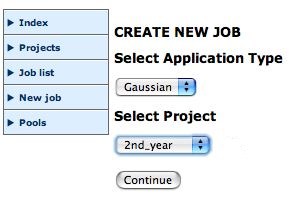
To submit a job, New Job/Chemistry Lab 1, then select Gaussian 8px and Select project, and finally the name of the Gaussian input file you have just saved, along with a descriptive title (ignore any formatted checkpoint file). The job will then be sent to the HPC queues. If you wish faster turnaround, select an application type using few processors (4 or 1).
You can view your job list, when a display of the type shown below should appear: Jobs in the Chemistry Lab 1 pool run during the day with a concurrency of 8. When there are many jobs you may have to wait overnight for yours to finish.
When the job shows as Finished, select the Gaussian Checkpoint file as the required output and download it (probably to the desktop, or wherever the browser tells you). Double-click the file to open Gaussview (it may happen automatically) and check that the optimised geometry is still reasonable. Invoke File/Save as and replace the original Gaussian input file you created with Avogadro. The input now has a fully optimised geometry at the b3lyp/6-31(d,p) level replacing the initial sketch of before, and this input can now be used to calculate other properties of the molecule.
Troubleshooting the HPC outputs
The following lists some of the things that might go wrong, and what to do about them. If you identify a reproducible cause of failure yourself, please feel free to add to the list below!
A job is finished but it returns no formatted checkpoint file. It is likely that there was an error in the input .gjf or .com file. A common error is the positioning or omission of blank lines in this file or that one of the keywords is mis-typed. Another error is that a keyword may be repeated (thus Gaussian does not much like repetition of the optkeyword). Download the log file (if it exists) and open it with eg NotePad++ (by right clicking). Check that blank lines are all correctly present and positioned and for keyword errors or duplication. The output may give a clue of sorts, but the presence or absence of blank lines often confuse it. The below is an example of how an unrecognized keyword is flagged. You can check up on all the correct keyword forms using manual.
# b3lyp/6-31G(d) nopt
 ---------------------
 QPERR --- A SYNTAX ERROR WAS DETECTED IN THE INPUT LINE.
 # b3lyp/6-31G(d) nopt
                  ^
If you cannot get a log file from the finished job, it is likely it ran out of time (each job has a limit of 48 hours for 8px and 12 for 4px). Put simply, your molecule (or the property you are trying to calculate) is a tad too big/demanding!
It is important if a job fails, to provide as much evidence as you can to demonstrators. Thus at a minimum, you should have to hand the input file (.gjf), and ascertain if running it produces any output. Do also remember that computers are relatively reproducible. If a job fails, resubmitting it will most likely produce a second failure. Rather than simply resubmitting a job, you must resolve the undoubted error the input contains. Remember that errors can be caused by what is called white space (which of course since it consists of nothing much, is easily disregarded), and that often even experienced demonstrators might fail to spot that extra bit of white space that is causing the error. If nothing obvious strikes you about an input, it might be easier to throw it away and start again rather than wait eg 24 hours to find it has (reproducibly) failed again!
It is also a good idea to run Gaussian on your laptop for a few seconds at least, this being better than waiting up to 24 hours to find that a trivial error stopped the calculation. You can also run a Gaussian input from Gaussview (by now you will appreciate that Gaussian itself is really not very good at handling and describing errors).
Research data management (RDM): Publishing to a digital repository
Having checked the job output that it gives a useful result, you can now choose to publish this job into the DSpace digital repository as an illustration of modern research data management technique. This process may take about 1 minute to complete. When it does a link will appear to the DSpace entry for the job. Inspect this to check that you are happy, and record its DOI, which takes the form of either 10042/30609 or 10.14469/ch/24571 (the latter form does not appear immediately but can take about 1 hour). You can insert either of these into the wiki using the template {{DOI|10.14469/ch/24571}} or {{DOI|10042/30609}} which will produce the effect DOI:10.14469/ch/24571 or DOI:10042/30609 ).
Your ORCID identifier should appear as metadata for your entry.
The form 10.14469/ch/24571 can be shortened further by employing this link, to produce (for the above ) s3q.